Bills of Quantity (BOQ)#
Ametnes Construction Management
Tier: Premium, Enterprise
Offering: Ametnes Managed
Industry: Construction, Manufacturing
Bills of Quantity (BOQ) are detailed lists of materials, labor, equipment, and other resources required for a construction project. They serve as the foundation for cost estimation, procurement planning, and project execution.
Overview#
A Bill of Quantity breaks down a construction project into measurable components, each with associated quantities, unit costs, and total costs. BOQs are essential for:
- Accurate cost estimation and budgeting
- Procurement planning and material requisitions
- Work package creation and task assignment
- Progress tracking and cost control
- Creating purchase orders and managing inventory
Creating a Bill of Quantity#
Step 1: Access BOQ Management#
🧾 Bill of Quantity (BOQ)#
The Bill of Quantity is integrated with the Project management module to establish and track the detailed budget for a project. It handles cost categorization (Material, Labor, Subcontract) and allows for the management of different budget versions through revisions.
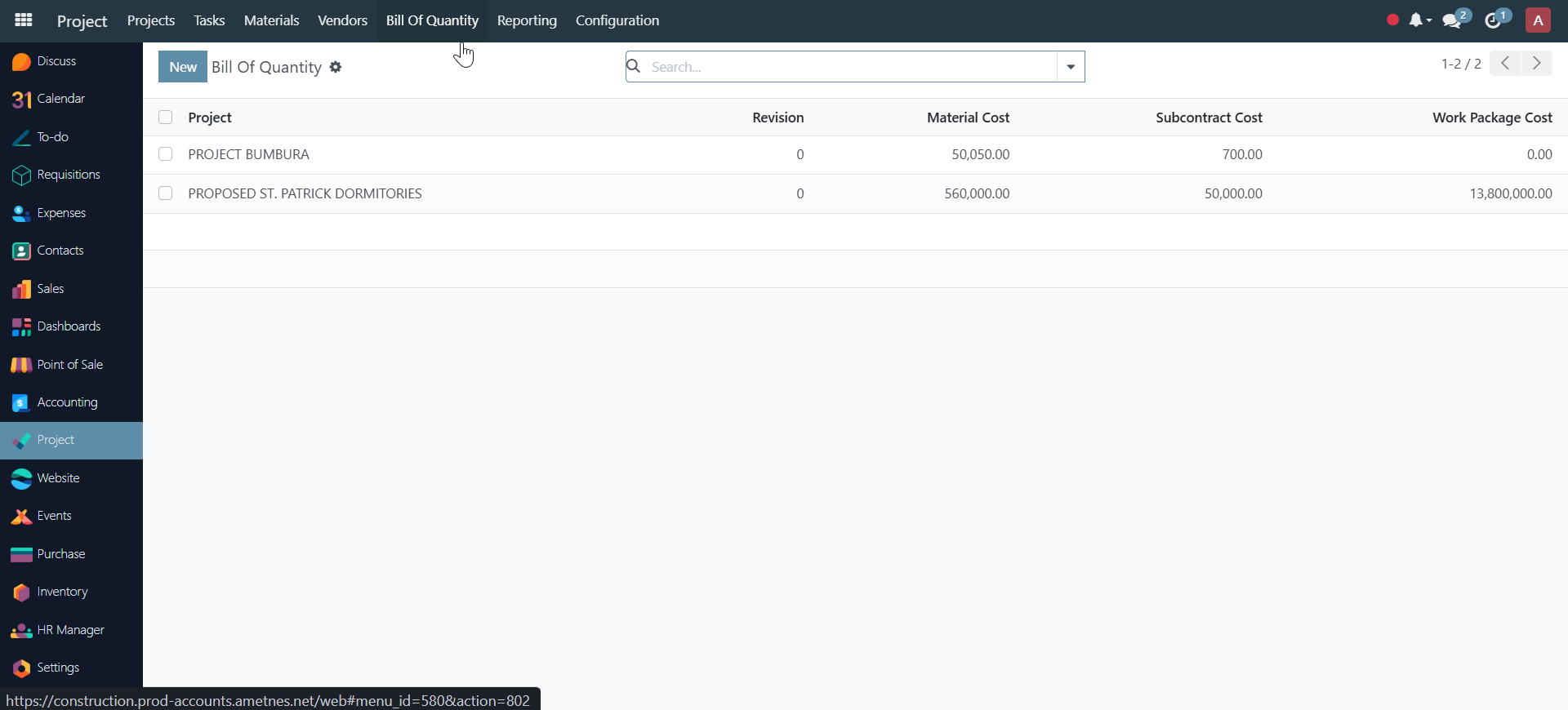
1. Navigating to the BOQ#
- Navigate to Projects: Click on the "Projects" menu item.
- Access BOQ: Click on the "Bill Of Quantity" link in the header menu.
- Open BOQ: Click on the specific BOQ record (e.g., PROJECT BUMBURA) to open the detail view.
2. Managing BOQ Revisions#
Revisions are essential for historical cost tracking and managing changes to the project budget.
- New Revision: While viewing an existing BOQ, click the "New Revision" button to start a budget update.
-
Record Revision Number: The system will prompt you to enter the new sequential Revision number (e.g.,
1,2,3).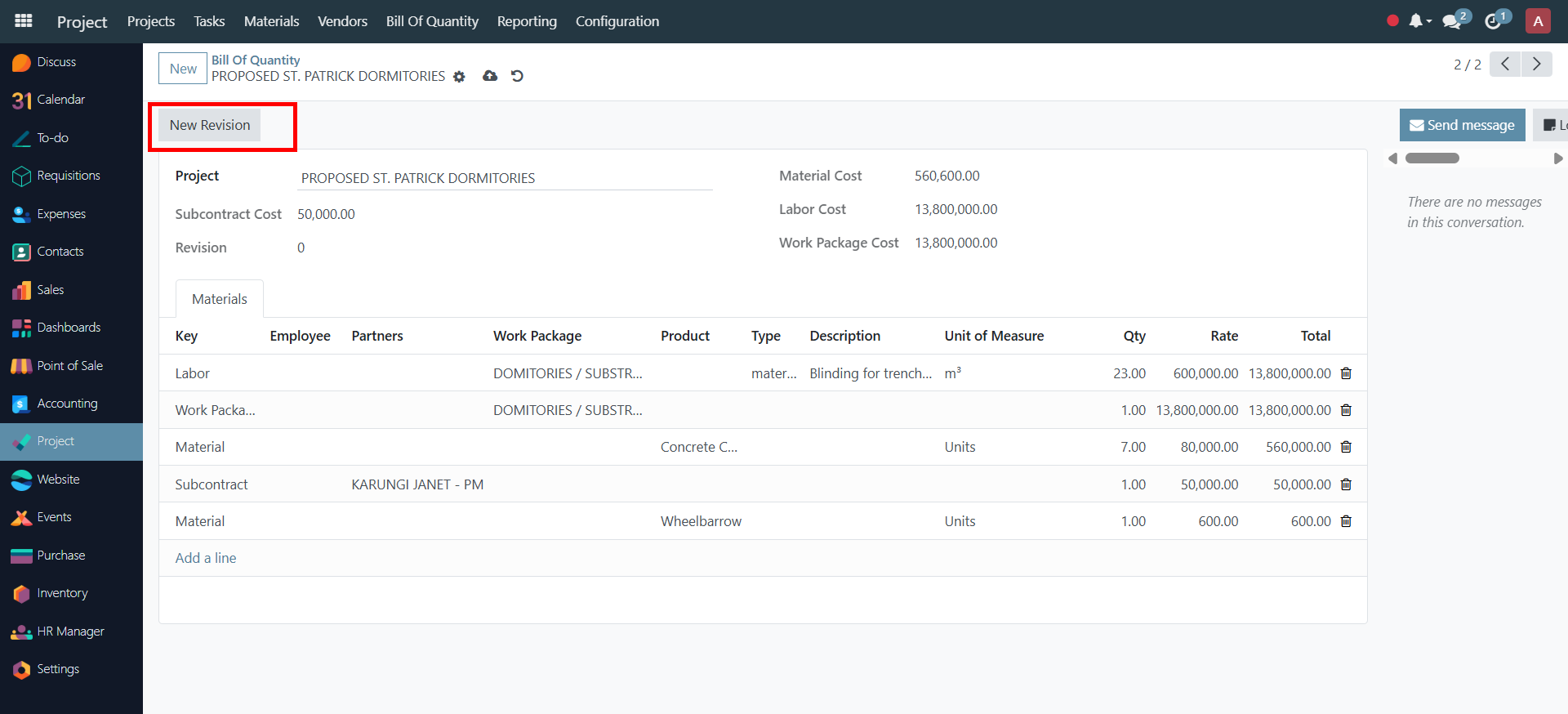
-
Update Costs: Once the new revision is saved, you can proceed to update the cost line items in the detail table.
3. Reviewing BOQ Cost Breakdown#
The BOQ detail view provides a high-level summary of the budget for the current revision:
| Cost Type | Description |
|---|---|
| Material Cost | The total calculated cost of all materials listed in the line items. |
| Subcontract Cost | The total calculated cost for all outsourced services. |
| Labor Cost | The total calculated cost for all internal labor resources. |
| Work Package Cost | The total budget allocated and calculated for the associated Work Package(s). |
4. Entering BOQ Line Items#
The main table allows for detailed entry of every budgeted item by category and cost driver.
| Field | Purpose | Example |
|---|---|---|
| Key | Defines the cost category (e.g., Labor, Material, Subcontract, Work Package). | Material |
| Employ/Partners | Identifies the resource (Employee) or the supplier (Partners for Subcontract). | Brodman Supplies |
| Work Package | Links the specific cost line item to a defined project work package. | SUBSTRUCTURE / SIT... |
| Product/Type | Identifies the specific product or service being budgeted. | Concrete C... |
| Description | Detailed explanation of the item. | |
| Unit of Measure | The unit used for calculating the cost (e.g., Units). |
|
| Qty | The planned quantity of the item. | 6.00 |
| Rate | The unit cost of the item. | 5,000.00 |
| Total | Calculated line item cost (Qty x Rate). | 30,000.00 |
5. Reviewing Accumulated Project Cost#
The total costs established in the BOQs are aggregated and reflected in the overall Project Settings.
- Access Project Settings: Go back to the main Project view and open the Settings menu for the associated project.
- Locate Settings Tab: Navigate to the Settings tab within the Project Settings.
- Review Project Cost: The system displays the Project Cost field, which is the total accumulated budget derived from all linked BOQs.
- Work Package: Review the Work Package section to confirm the work package(s) attached to the project that organize the BOQ cost structure.
Managing Revisions#
- View all revisions in the BOQ tree view.
- Compare revisions side-by-side.
- Track changes between revisions.
- Use the latest revision for project execution.
📥 Bill of Quantity (BOQ) Import Documentation#
This guide details the process of importing BOQ line items from an external spreadsheet (e.g., Excel or CSV) to quickly set the budget for a new or existing project.
Prerequisites#
- The BOQ data must be prepared in a spreadsheet file with columns that align with the system's BOQ fields.
Required Spreadsheet Format#
The structure of the import file must correctly map to the BOQ line item structure to define the project, cost type, product, and quantity/rate.
| Column Name (Example) | Corresponding System Field | Purpose |
|---|---|---|
| Project | Project | The project name to which the BOQ line item belongs (Crucial). |
| Key | Key | Defines the cost category: Work Package, Material, Subcontract, or Labor. |
| Work Package | Work Package | The specific work breakdown structure element this cost belongs to. |
| Product | Product | The specific inventory item or service being budgeted. |
| Description | Description | A detailed description of the item or task (e.g., Site clearance). |
| UoM | Unit of Measure | The unit used for measurement (e.g., cm, m, Units). |
| Qty | Quantity (Qty) | The planned quantity of the item. |
| Rate | Rate | The unit cost of the item. |
1. Accessing the BOQ Import Screen#
This process begins from the main Bill of Quantity list view.
- Navigate to BOQ: Click the "Bill Of Quantity" link in the main header menu.
- Initiate Import: On the BOQ list screen, click the Settings Icon (gear icon) located next to the "New" button and select the "Import records" option from the dropdown list.
2. Executing the BOQ Import#
This section covers uploading the file and mapping the fields to finalize the BOQ import.
| Step | Action | Description |
|---|---|---|
| 1. Upload File | On the import screen, click the "Upload file" button. | A file manager dialog will open; select your prepared spreadsheet file. |
| 2. Review Mapping | The system displays a preview, attempting to match your column headers (File Column) with the system's BOQ fields (Odoo Field). | Crucially, ensure the Project field is correctly mapped so the system knows which project each line item belongs to. |
| 3. Manually Map Fields | Review all columns (Key, Work Package, Qty, Rate, etc.) and adjust the mapping if necessary to ensure accuracy. | Use the dropdown next to each File Column to select the correct corresponding BOQ field. |
| 4. Test Import (Recommended) | Click the "Test" button at the top of the form. | This validates the file structure and data integrity. Fix any errors before proceeding. |
| 5. Finalize Import | Once the test is successful, click the "Import" button. | The system processes the data, creating the new BOQ records and calculating the total costs (Material Cost, Subcontract Cost, etc.) for each project/revision. |
3. Post-Import Review#
After the import is complete:
- Verify BOQ List: The newly imported BOQs, along with their calculated costs and revision numbers, will now appear in the main Bill Of Quantity list view.
- Attach Project (If not linked via file): If the Project column was not used in the import file, you must open the new BOQ record and manually attach the correct Project to complete the linkage.
Continue to Work Packages