Ametnes Odoo Password Reset Guide#
Table of Contents#
- Overview
- Administrator: Sending Password Reset Instructions
- User: Self-Service Password Reset
- Using the Password Reset Link
- Best Practices
Overview#
Password reset functionality in Odoo allows both administrators and users to securely reset forgotten passwords. This guide covers two main scenarios:
-
Administrator-initiated: Admins can send reset instructions to any user
-
User-initiated: Users can request password resets themselves
Prerequisites:
-
Valid Odoo user account
-
Administrator access (for admin functions)
-
Access to email account associated with Odoo user
Administrator: Sending Password Reset Instructions#
Step 1: Navigate to User Management#
- Log in to Odoo with administrator privileges
- Go to Settings → Users & Companies → Users
- The Users list view will display all system users
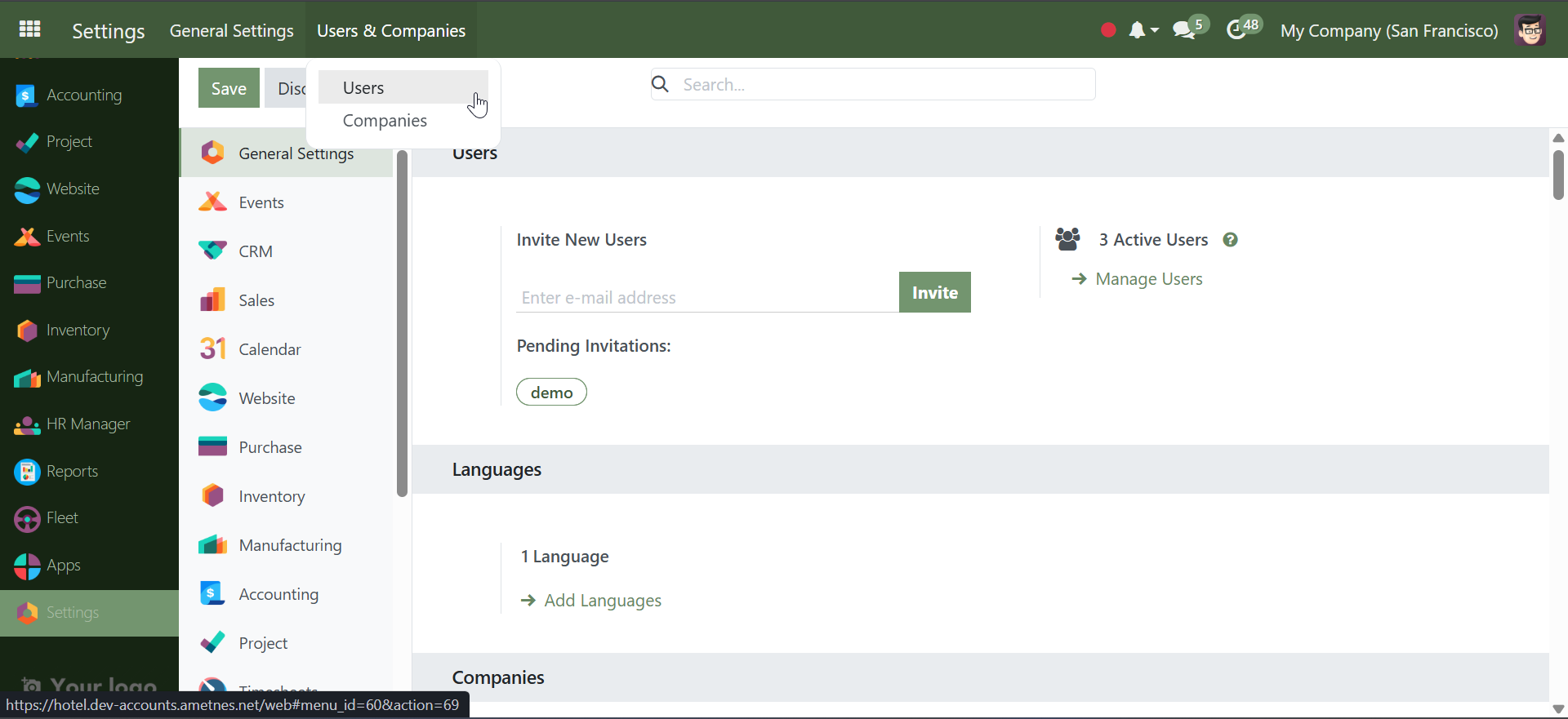
Step 2: Select the Target User#
- Locate the user who needs a password reset using one of these methods:
- Search: Use the search bar to find the user by name or email
- Filter: Apply filters to narrow down the user list
-
Browse: Scroll through the user list manually
-
Click on the user's name to open their profile
Step 3: Send Reset Instructions#
- In the user's profile page, click the Action button at the top
- Select Send Password Reset Instructions
- Confirm the action when prompted
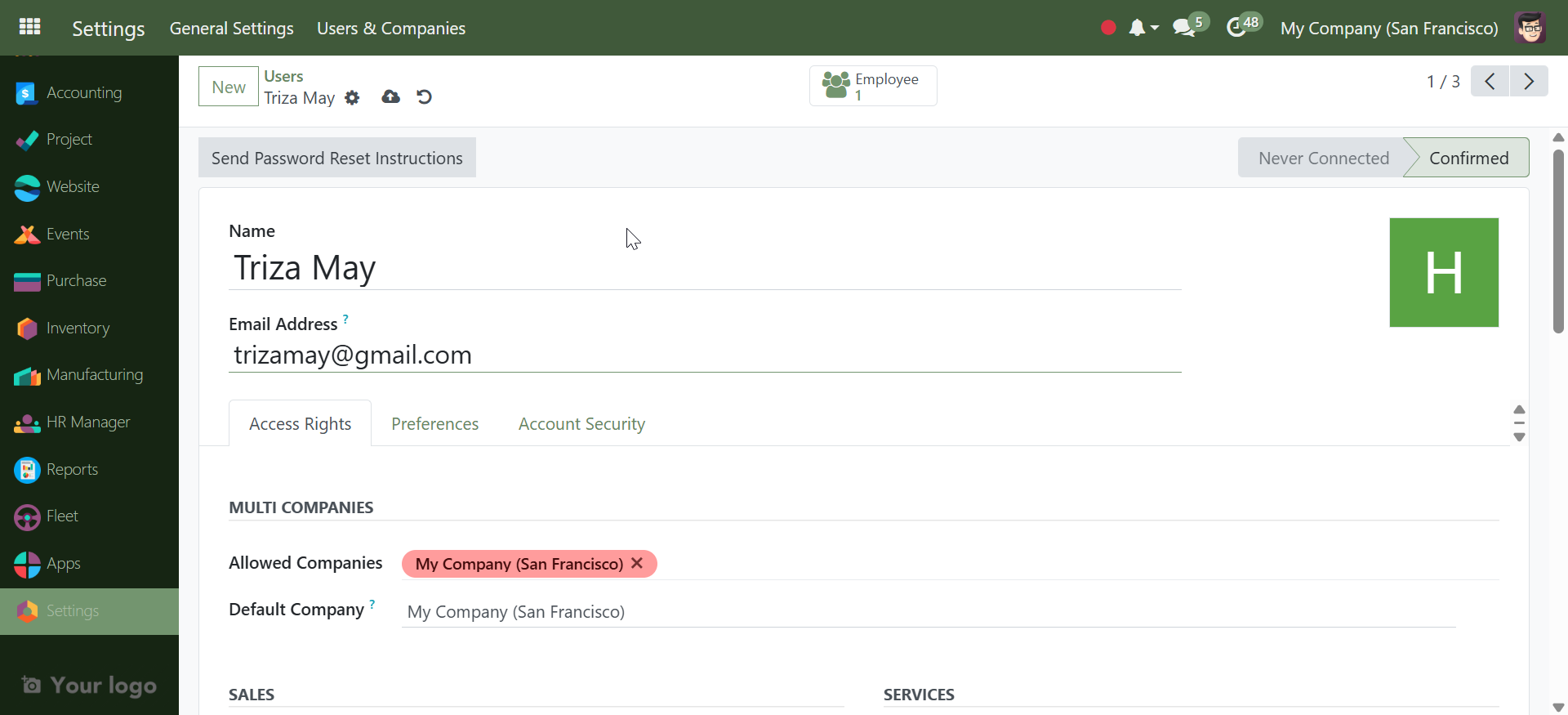
Step 4: Confirmation#
- A success notification will appear confirming that reset instructions have been sent
- The user will receive an email with a secure reset link
- The reset link is valid for 24 hours
Note: Ensure your Odoo system has proper email configuration for delivery to work correctly.
User: Self-Service Password Reset#
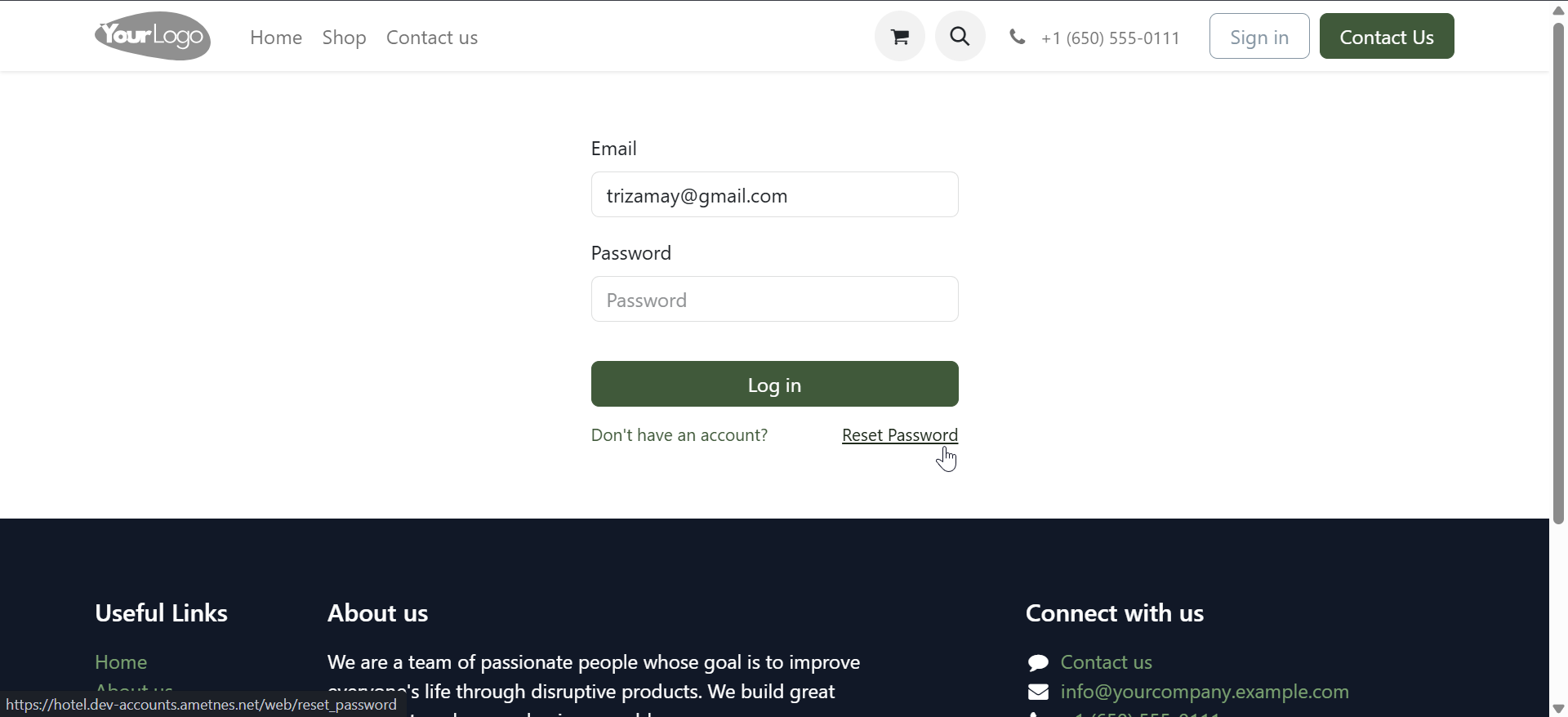
Step 1: Access the Reset Option#
- Navigate to your Odoo login page
- Click the Reset Password link below the login form
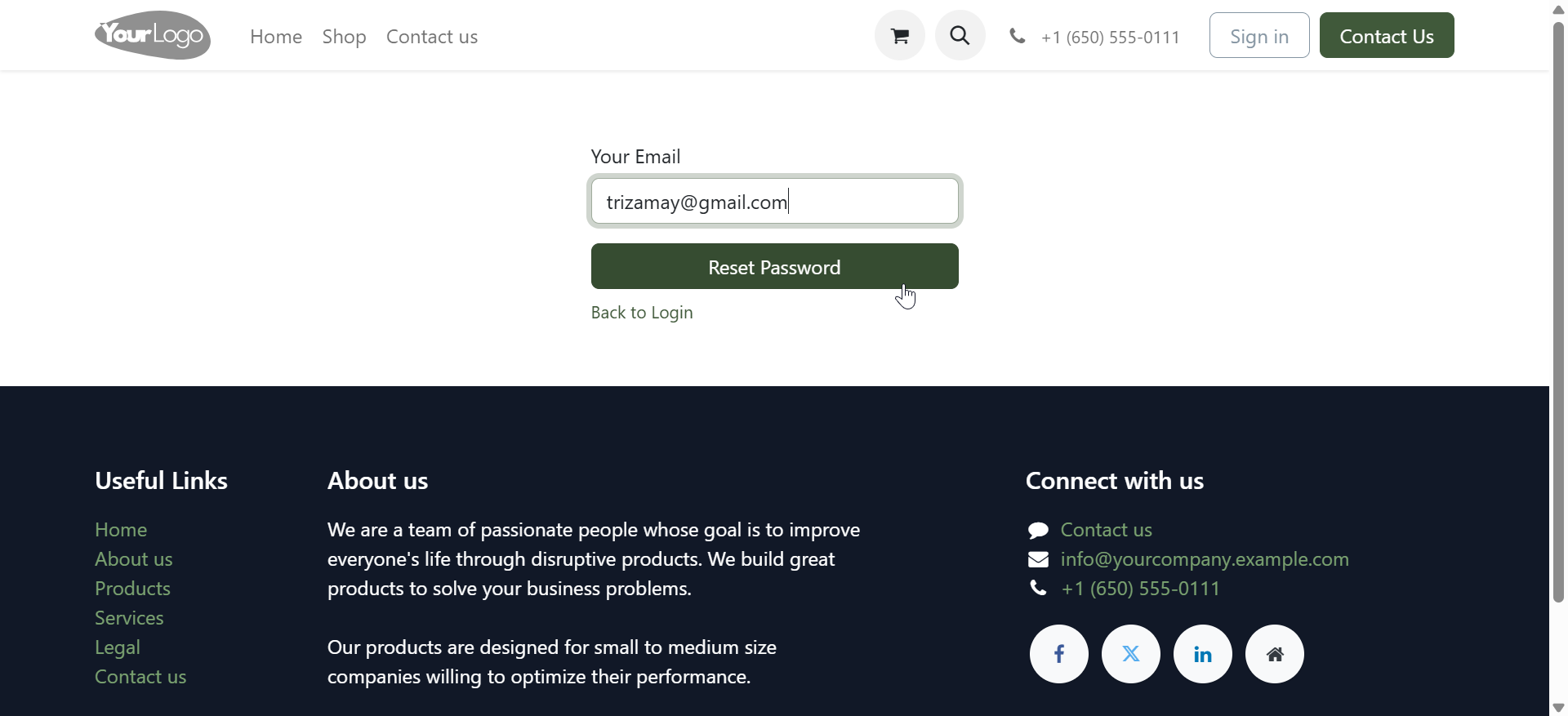
Step 2: Enter Your Email Address#
- Enter the email address associated with your Odoo account
- Click Reset Password
Step 3: Check Your Email#
-
You'll see a confirmation message that instructions have been sent
-
Check your email inbox (and spam folder) for the reset email
-
The email will arrive within a few minutes
Using the Password Reset Link#
Step 1: Open the Reset Email#
The password reset email contains: - Subject: "Password reset for [Your Name]"
-
Secure reset link (valid for 24 hours)
-
Instructions for completing the reset
Step 2: Click the Reset Link#
-
Click the Reset Password button or link in the email
-
You'll be redirected to a secure Odoo page
-
The link can only be used once
Step 3: Set Your New Password#
-
Enter your new password in the New Password field
-
Confirm the password in the Confirm New Password field
-
Click Change Password
Password Requirements:
-
Minimum 8 characters
-
Mix of uppercase and lowercase letters
-
Include numbers and special characters
-
Avoid common words or personal information
Step 4: Automatic Login#
After successfully changing your password:
-
You'll be automatically logged into your Odoo account
-
Your old password is immediately invalidated
-
All active sessions are terminated for security
Best Practices#
For Users#
-
Use strong passwords: Combine letters, numbers, and special characters
-
Don't share reset links: These are personal and security-sensitive
-
Act quickly: Reset links expire after 24 hours
-
Keep credentials secure: Store passwords in a secure password manager
For Administrators#
- Verify user identity before sending reset instructions
- Monitor reset requests for unusual activity
- Educate users about password security
- Regular audits of user access and password policies
Security Considerations#
- Reset links are single-use only
- Links expire automatically after 24 hours
- All active user sessions are terminated upon password change
- Email notifications are sent for all password changes
Troubleshooting#
Common Issues and Solutions#
Reset Email Not Received#
Problem: User doesn't receive the password reset email
Solutions:
-
Check spam folder: Reset emails may be filtered as spam
-
Verify email address: Ensure the correct email is associated with the user account
-
Wait 5-10 minutes: Email delivery may be delayed
-
Contact administrator: Admin can verify email settings and resend
Reset Link Expired#
Problem: "This link has expired" message appears
Solutions:
-
Request new reset: Use the self-service option to get a fresh link
-
Contact administrator: Admin can send new reset instructions
-
Check timestamp: Ensure you're using the most recent email
Reset Link Already Used#
Problem: "This link has already been used" message
Solutions: 1. Try logging in: Your password may have already been changed
-
Request new reset: If you still can't access your account
-
Contact support: Administrator assistance may be required
Email Configuration Issues (Administrators)#
Problem: Reset emails aren't being sent from the system
Solutions:
-
Check email settings: Settings → Technical → Email → Outgoing Mail Servers
-
Test email configuration: Send a test email to verify setup
-
Review server logs: Check for email delivery errors
-
Contact IT support: For mail server configuration issues
System Configuration#
Administrator Setup Requirements#
Email Server Configuration#
Ensure your Odoo system has proper email configuration:
- Go to Settings → Technical → Email → Outgoing Mail Servers
- Configure SMTP settings:
User Email Verification#
Regularly verify that user email addresses are:
-
Current and valid
-
Accessible by the user
-
Not shared between multiple users
-
Properly formatted