Material Requisitions#
Ametnes Construction Management
Tier: Premium, Enterprise
Offering: Ametnes Managed
Industry: Construction, Manufacturing
Material Requisitions enable employees and departments to request materials needed for construction projects. The system manages the entire requisition workflow from request to approval to procurement.
Overview#
Material Requisitions streamline the process of:
- Requesting materials for construction activities
- Departmental approval workflows
- Vendor selection and purchase order creation
- Material delivery and receipt tracking
- Inventory management integration
Access Control and Permissions#
User Roles#
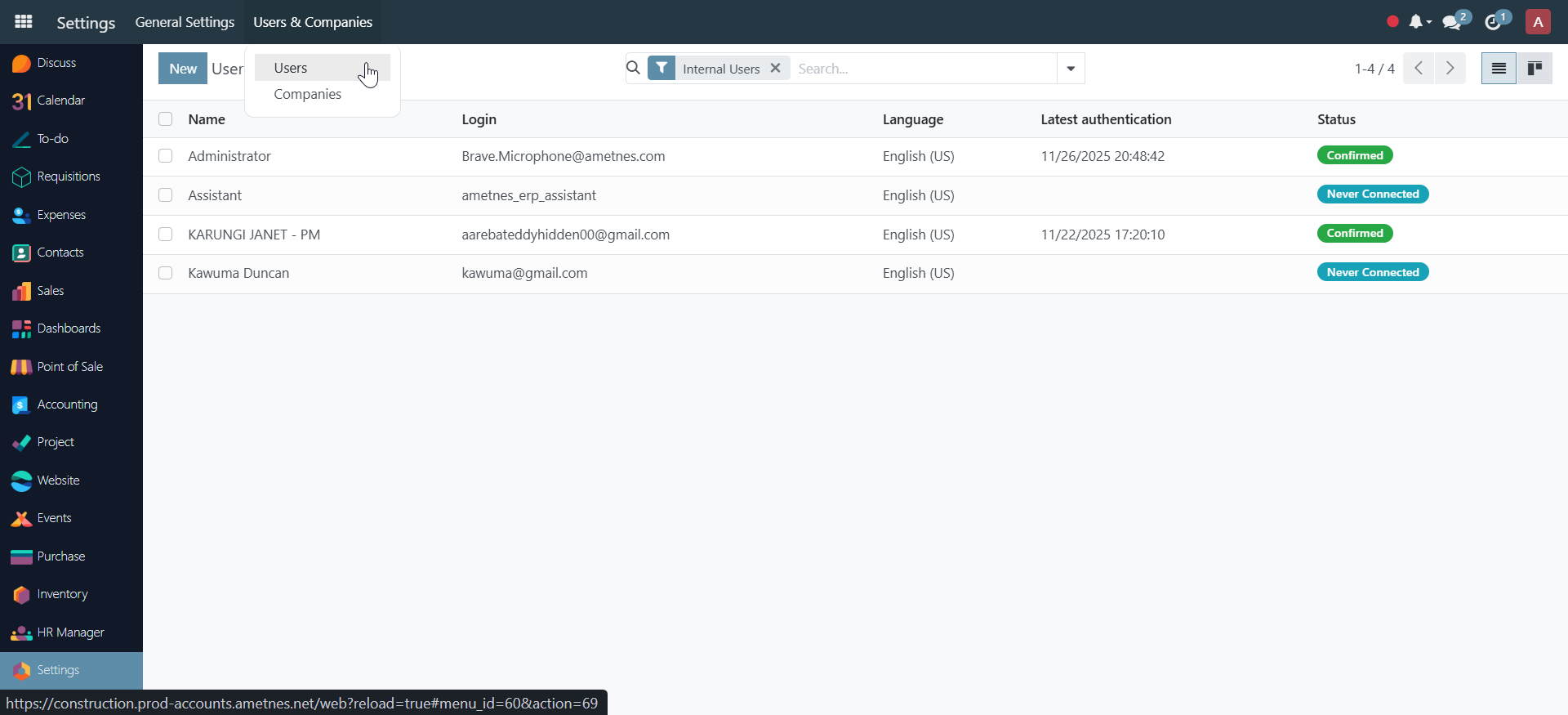
Before using material requisitions, configure user permissions:
- Navigate to Settings → Users & Companies → Users.
- Select the user to configure.
- Enable appropriate access:
- Purchase Requisition User: Can create and manage requisitions
- Purchase Requisition Department Manager: Can approve department requisitions
Department Configuration#
Configure departments for requisition management:
- Go to Settings → Users & Companies → Departments.
- Open the department form.
- In Purchase Requisitions Settings tab:
- Source Location: Where materials will come from
- Destination Location: Where materials will be delivered
Creating a Material Requisition#
Step 1: Access Requisitions#
- Navigate to Requisitions → Purchase Requisitions.
- Click Create to start a new requisition.
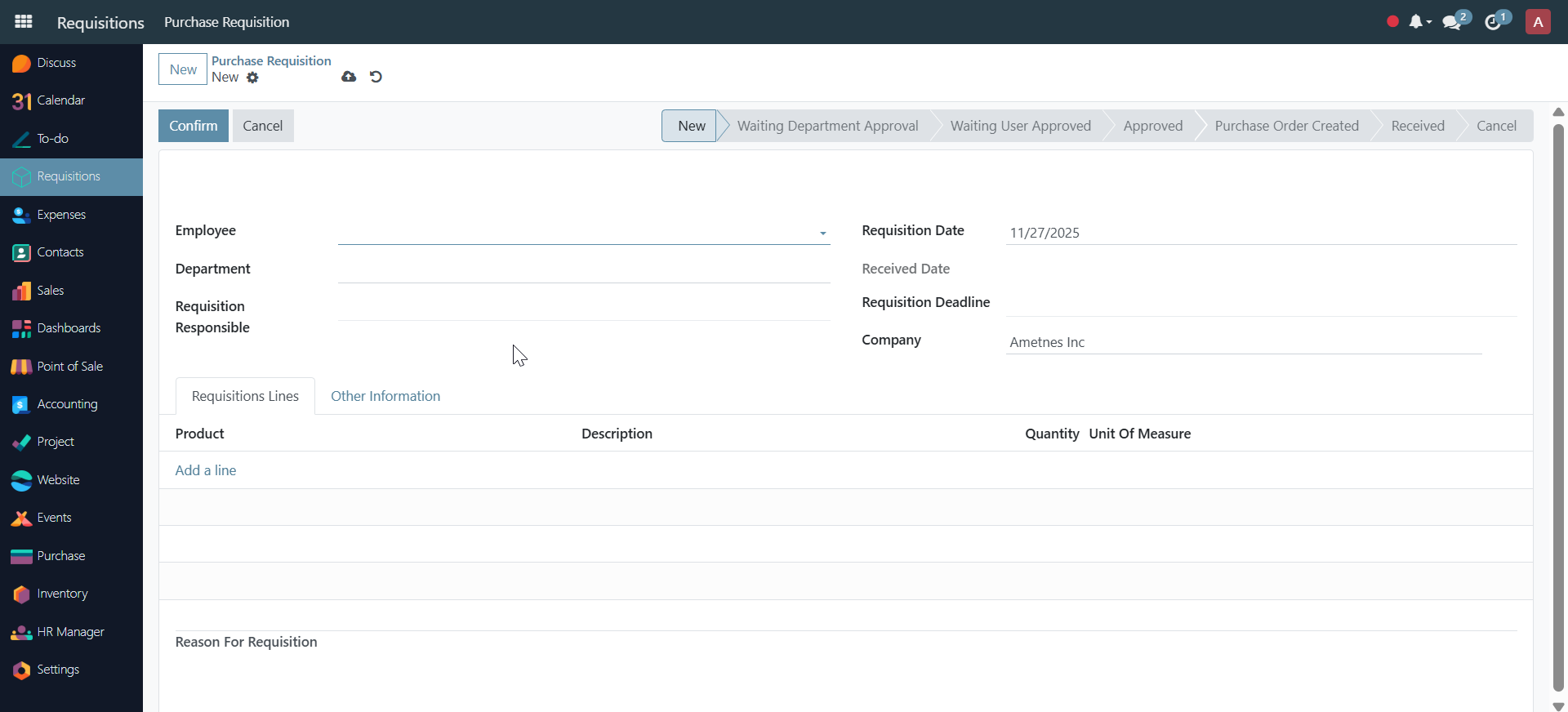
Step 2: Enter Requisition Details#
- Requisition Number: Auto-generated
- Date: Requisition date
- Department: Your department (auto-filled)
- Project: Link to construction project (optional)
- Work Package: Link to specific work package (optional)
- Description: Purpose or notes
Step 3: Add Requisition Lines#
For each material needed:
- Product: Select from inventory catalog
- Description: Material description
- Quantity: Required quantity
- Unit of Measure: Appropriate unit
- Requested Date: When material is needed
- Notes: Additional information
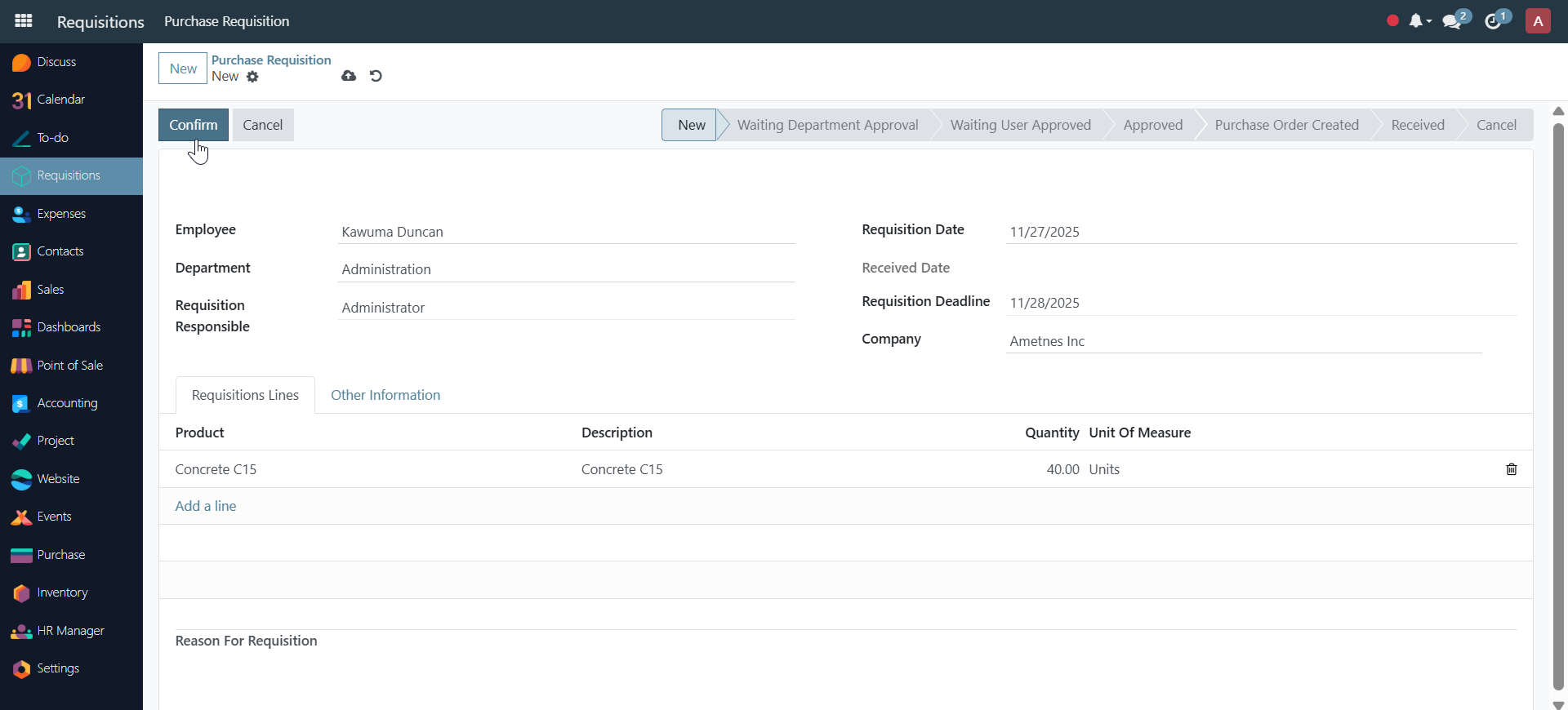
Step 4: Confirm Requisition#
- Review all entries.
- Click Confirm.
- Status changes from New to Waiting Department Approval.
Requisition Workflow#
Stage 1: Employee Confirmation#
- Employee creates and confirms requisition
- Status: Waiting Department Approval
- Sent to department manager for review
Stage 2: Department Manager Approval#
- Department manager receives notification.
- Reviews requisition details.
- Options:
- Approve: Status → Waiting User Approved
- Reject: Provide reason, status → Rejected
- Request Changes: Return to employee
Stage 3: Requisition Head Approval#
- Requisition head reviews approved requisitions.
- Options:
- Approve: Status → Approved
- Reject: Provide reason
- After approval, can create:
- Purchase Orders (for external procurement)
- Internal Picking (for internal transfers)
Stage 4: Purchase Order Creation#
- From approved requisition, click Create Purchase Order.
- Purchase Order Wizard opens:
- Select vendors for each material
- Review quantities and prices
- Confirm vendor selections
- System generates purchase orders automatically.
Stage 5: Internal Picking (Alternative)#
For materials available internally:
- Click Create Internal Picking.
- Select source and destination locations.
- Generate internal transfer document.
Stage 6: Receipt#
- When materials arrive, click Received.
- Status changes to Received.
- Update inventory records.
- Link to delivery orders or purchase receipts.
Requisition Information#
Tracking Details#
View comprehensive requisition information:
- Confirmed By: Employee who confirmed
- Confirmed Date: Confirmation timestamp
- Approved By: Manager who approved
- Approved Date: Approval timestamp
- Rejected By: Person who rejected (if applicable)
- Rejected Date: Rejection timestamp
- Rejection Reason: Explanation for rejection
Related Documents#
Access related documents:
- Purchase Orders: Created from this requisition
- Internal Pickings: Internal transfers created
- Delivery Orders: Material deliveries
- Invoices: Vendor invoices
Requisition Reports#
Generate reports for:
- Requisition Status: Current status of all requisitions
- Approval History: Complete approval trail
- Material Requests: Summary by material type
- Department Summary: Requisitions by department
- Cost Analysis: Estimated costs per requisition
Best Practices#
- Plan Ahead: Create requisitions well before materials are needed.
- Be Specific: Provide clear descriptions and quantities.
- Link to Projects: Always link requisitions to projects/work packages.
- Follow Workflow: Respect approval hierarchy.
- Track Status: Monitor requisition progress regularly.
- Document Changes: Note any modifications or special requirements.
Integration with Other Modules#
Material Requisitions integrate with:
- Inventory: Track material requirements and stock levels
- Purchase: Generate purchase orders automatically
- Projects: Link to construction projects and work packages
- Accounting: Post costs to appropriate accounts
- BOQ: Reference Bill of Quantity items
Troubleshooting#
Requisition Stuck in Approval#
- Check if department manager has approval rights
- Verify department configuration
- Contact system administrator
Cannot Create Purchase Order#
- Ensure requisition is fully approved
- Verify vendor information is complete
- Check that materials are available for purchase
Materials Not Received#
- Verify delivery orders are created
- Check inventory locations
- Confirm receipt status in system
Continue to Project Tasks and Timesheets