Vendors Menu#
Overview#
The Vendors menu provides access to all vendor-related functions including vendor management, bills, payments, refunds, and expense tracking.
Vendors Menu Structure#
Main Sections:#
-
Vendors: Vendor database and profiles
-
Bills: Vendor invoices and billing
-
Refunds: Vendor credit notes and returns
-
Payments: Vendor payment processing
-
Employee Expenses: Staff expense management
-
Bank Accounts: Financial account management
-
Products: Product catalog
-
Vendors: Vendor directory (duplicate access)
Vendor Bills Documentation#
Overview#
Vendor Bills manages all incoming invoices from suppliers and vendors. This system handles bill processing from receipt through payment, including bill validation, approval, and payment scheduling.
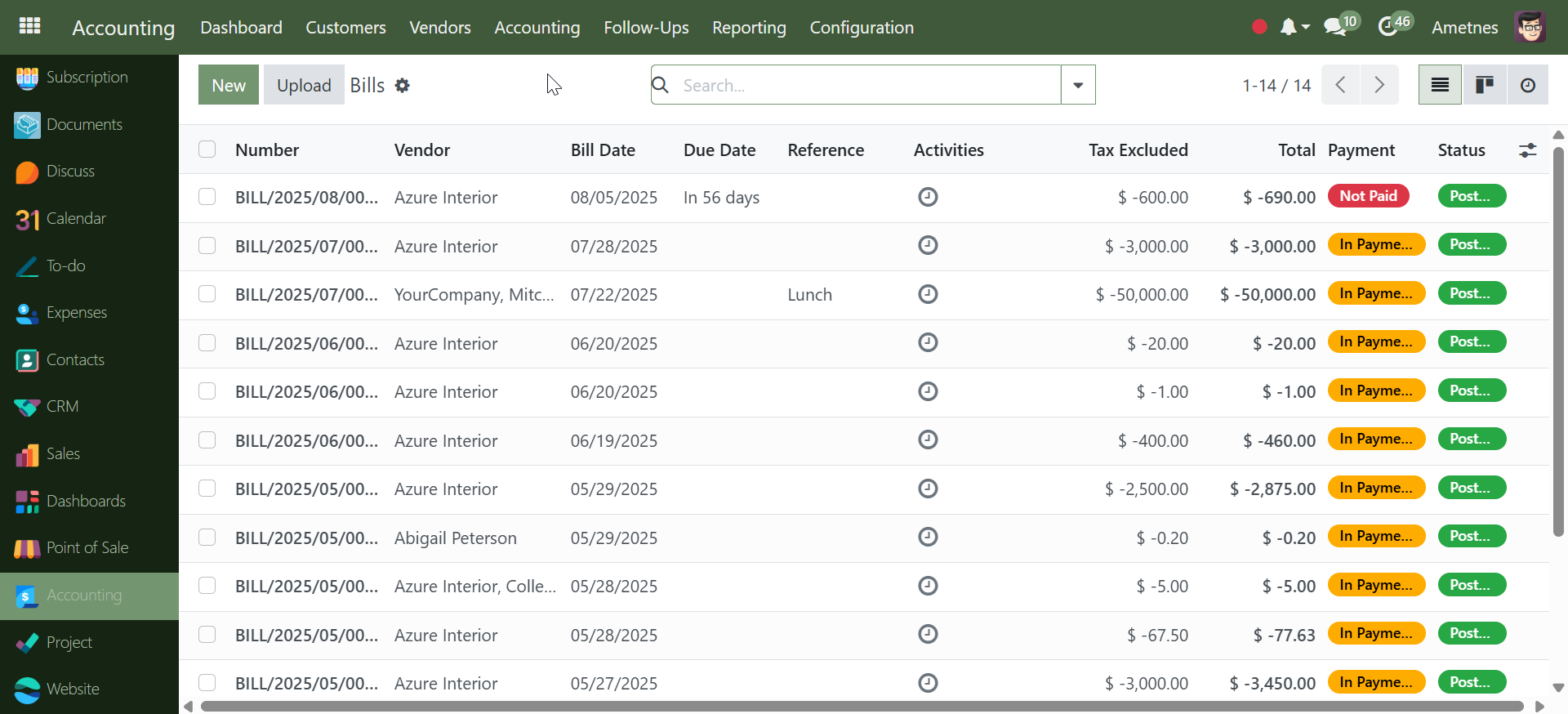
Bills Dashboard#
Viewing Bills List#
Access by clicking Bills to view all vendor bills:
Bill Columns: - Number: Bill reference (e.g., BILL/2025/07/0001)
-
Vendor: Supplier name (e.g., Azure Interior, YourCompany)
-
Bill Date: Date bill was issued
-
Due Date: Payment deadline
-
Reference: Vendor's invoice reference (e.g., "Lunch")
-
Activities: Action logs and communications
-
Tax Excluded: Amount before tax calculations
-
Total: Final bill amount including taxes
-
Payment: Payment status indicator
-
Status: Bill processing state
Bill Status Types:#
- In Payment: Bill is being processed for payment (Orange)
- Posted: Bill confirmed and ready for payment (Green)
- Not Paid: Outstanding bill requiring payment (Red)
Creating New Vendor Bill#
Step 1: Start New Bill#
- Click Bills from the menu
- Click New button to create new bill
- Alternatively, use Upload to import bill documents
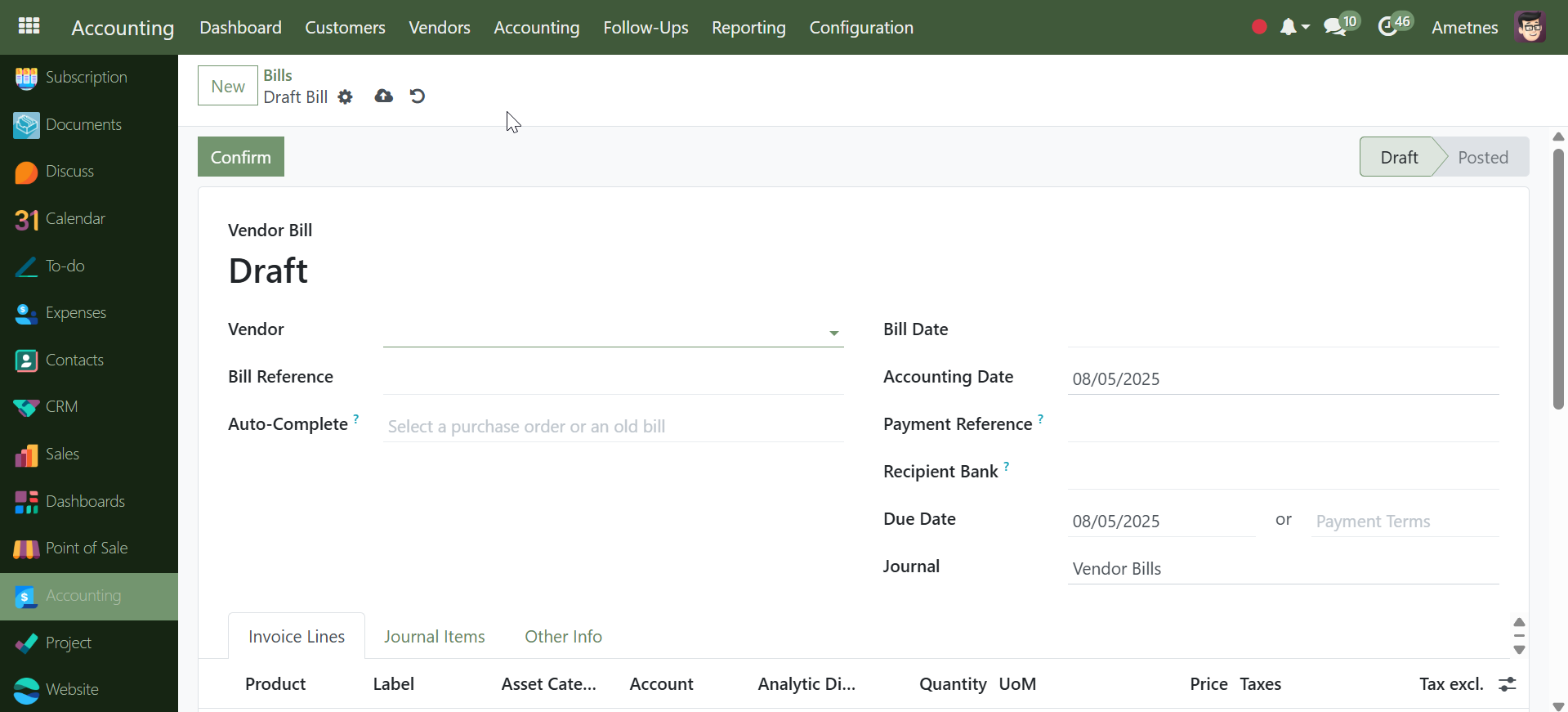
Step 2: Fill Bill Details#
Required Fields: - Vendor: Select vendor from dropdown
-
Bill Date: Date vendor issued the bill
-
Accounting Date: Date for accounting records
-
Due Date: Payment deadline (auto-calculated or manual)
-
Journal: Assigned to "Vendor Bills"
Optional Fields: - Bill Reference: Vendor's invoice number
-
Payment Reference: Internal payment reference
-
Recipient Bank: Bank account for payment
-
Auto-Complete: Link to purchase orders or previous bills
Step 3: Add Bill Lines#
In the Invoice Lines tab: - Product: Select products or services
-
Label: Description of items
-
Asset Category: Product classification
-
Account: General ledger account
-
Analytic Account: Cost center or project
-
Quantity: Number of units
-
UoM: Unit of measure
-
Price: Unit price
-
Taxes: Applied tax rates
-
Tax Excluded: Line total before tax
Step 4: Confirm Bill#
- Review all bill details in draft
- Click Confirm to post the bill
- Status changes from "Draft" to "Posted"
After Bill Confirmation#
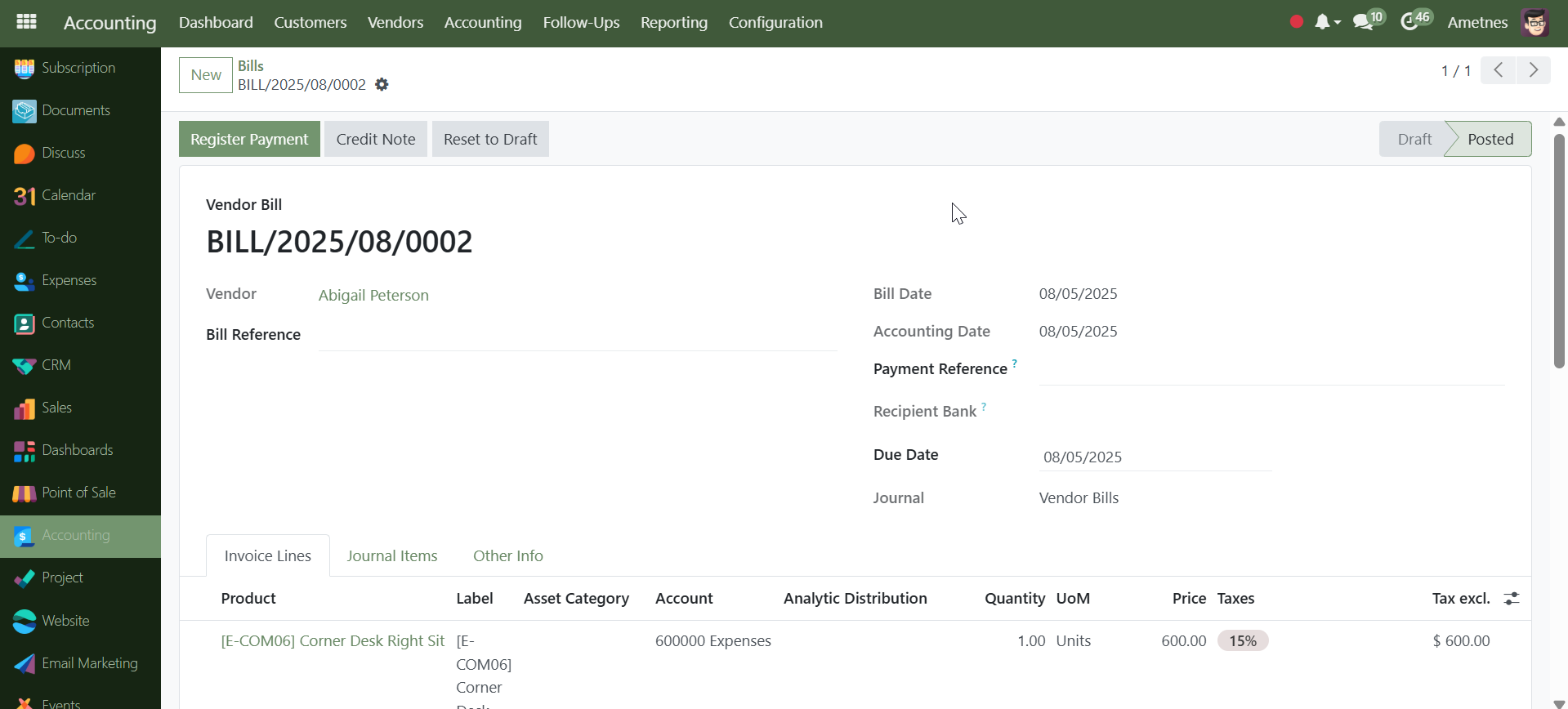
Available Actions:#
- Register Payment: Process payment to vendor
- Credit Note: Issue vendor credits or handle returns
- Reset to Draft: Return to editable state (if needed)
Payment Processing:#
- Outstanding Debits: System shows if vendor has outstanding credits
- Allocation: Credits can be allocated to mark bills as paid
- Payment Terms: Automatic due date calculation based on vendor terms
Bill Management Features#
Upload Functionality:#
- Document Upload: Import bill PDFs and images
- OCR Processing: Automatic data extraction from uploaded documents
- Smart Recognition: Auto-populate vendor and amount details
Status Tracking:#
- Color Coding: Visual status indicators
- Due Date Monitoring: Track overdue bills
- Payment Status: Monitor payment progress
Integration:#
- Purchase Orders: Link bills to existing POs
- Vendor Management: Direct integration with vendor records
- Payment Processing: Seamless payment workflow
- Accounting: Automatic journal entries
Bill Workflow Summary#
Bills → New/Upload → Select Vendor → Add Bill Lines → Confirm → Register Payment
Complete vendor bill processing from receipt to payment.
Complete vendor management system for procurement and payment processing.